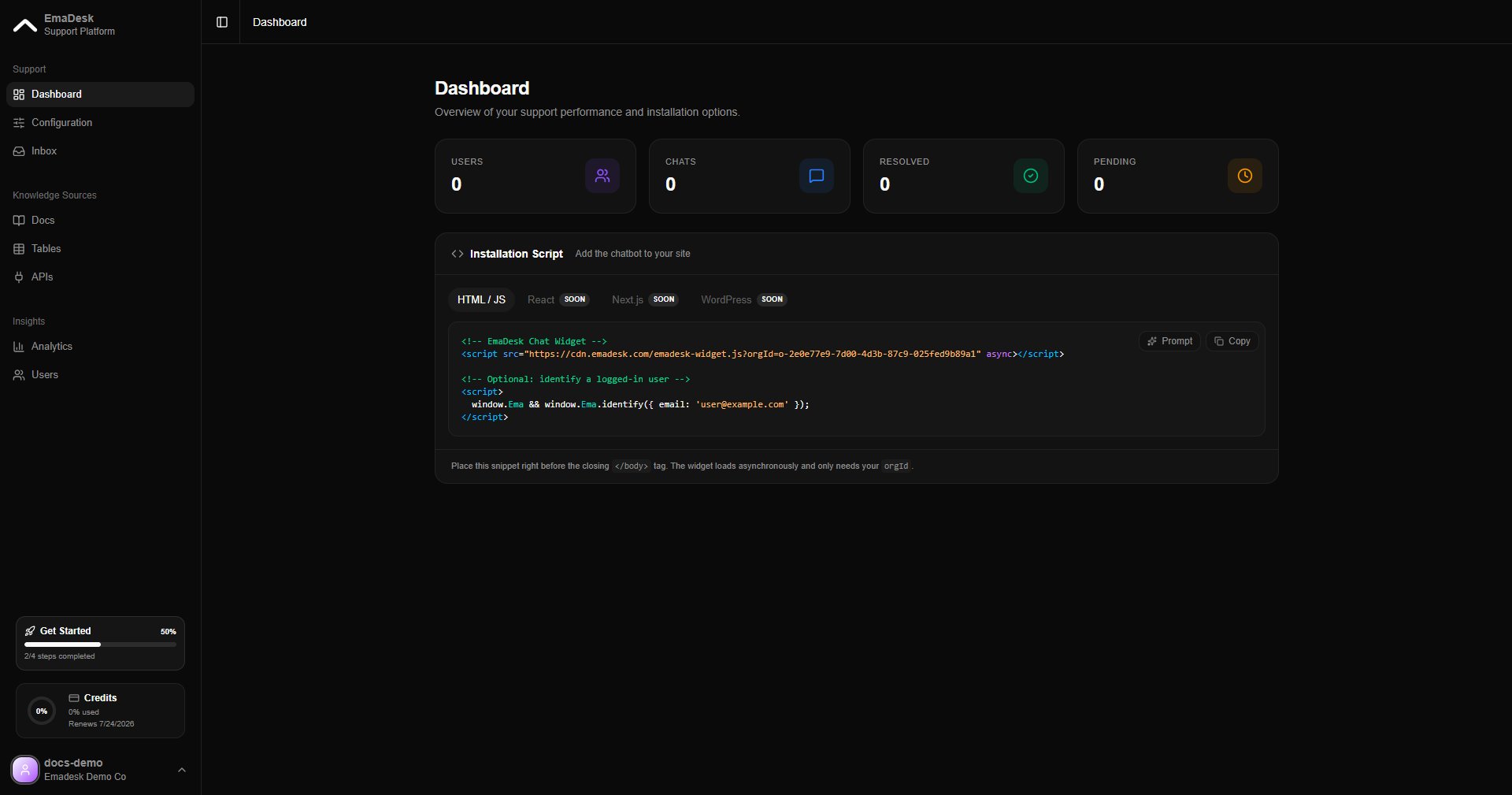
The dashboard is the first thing you see after signing in. It summarizes your support activity and gives you the snippet to add the chat widget to your site.
Dashboard overview

Stat cards

The cards at the top show your headline numbers:
  • Users — people who have chatted with your agent
  • Chats — total conversations
  • Resolved — conversations closed successfully
  • Pending — conversations still waiting

Installation script

Below the stats, copy the installation snippet and paste it before the closing </body> tag of your website. The widget loads asynchronously and only needs your orgId.
<!-- EmaDesk Chat Widget -->
<script src="https://cdn.emadesk.com/emadesk-widget.js?orgId=YOUR_ORG_ID" async></script>

<!-- Optional: identify a logged-in user -->
<script>
  window.Ema && window.Ema.identify({ email: 'user@example.com' });
</script>
Use the optional identify call once a user is logged in so their conversations are tied to their account. See Team and users.

Get Started checklist

A checklist in the sidebar tracks your setup: add knowledge, configure your agent, test it, and embed the widget.
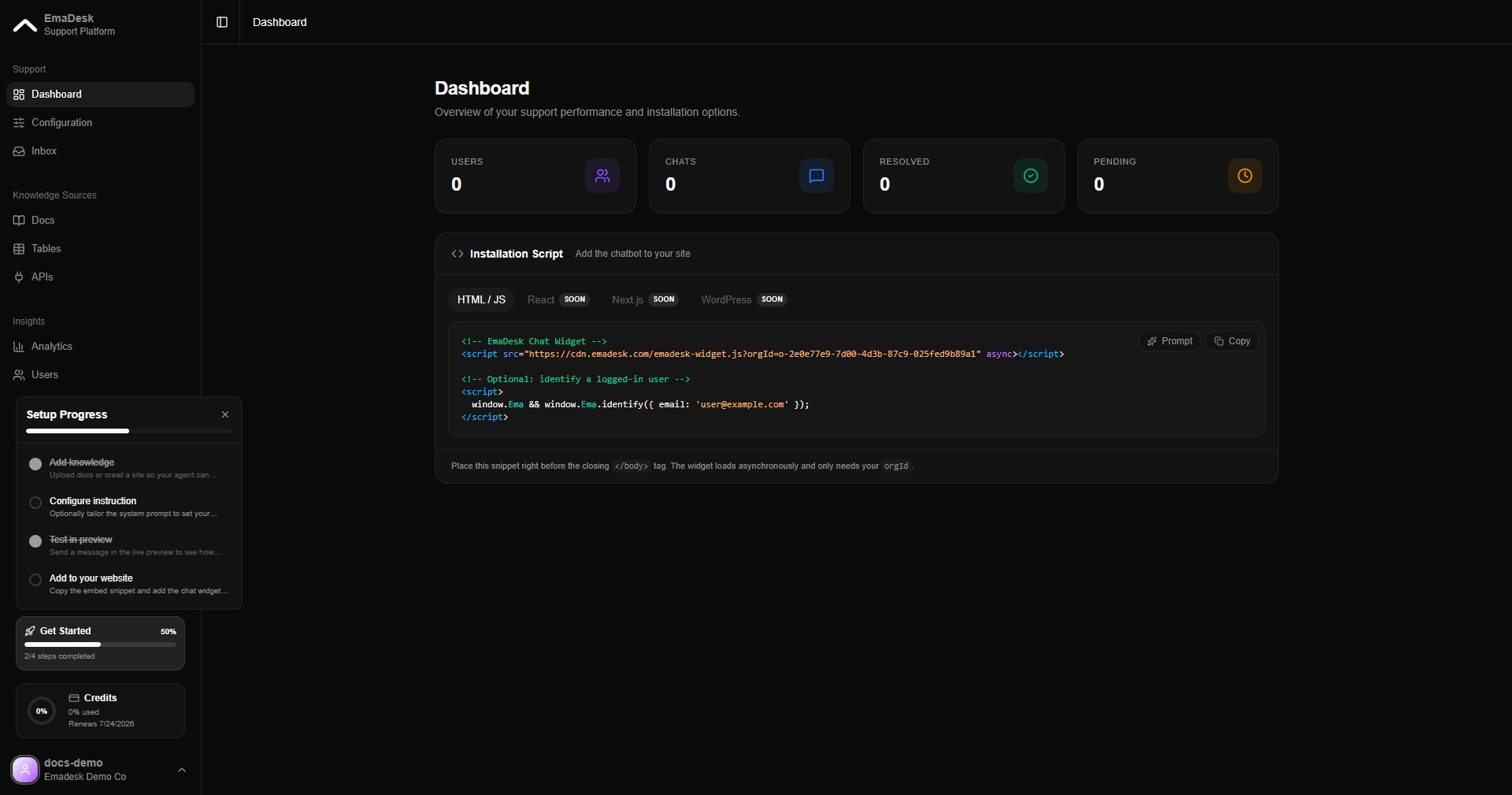
Get Started checklist