> ## Documentation Index
> Fetch the complete documentation index at: https://docs.emadesk.com/llms.txt
> Use this file to discover all available pages before exploring further.
# Introduction
> EmaDesk is an AI support agent that resolves customer questions on its own and hands off to your team when it matters.
EmaDesk is an intelligent customer-support agent. You give it your knowledge, connect it to your data, and embed a chat widget on your site. It then answers customer questions accurately, takes actions through your own APIs, and escalates to a human when needed.
It is not a bot builder you have to wire up by hand. A single agent ships ready to work, and you shape it from one dashboard.
 ## What you can do
Upload documents or crawl your site and the agent answers from your real content, with sources.
Give the agent structured tables it can read and write during a chat, like orders or bookings.
Connect your own APIs so the agent can fetch live data or trigger workflows mid-conversation.
When a chat needs a person, the agent transfers it to your support team automatically.
## How it fits together
Sign up, name your organization, and the agent is created for you. See [Sign up and onboarding](/onboarding).
Add [knowledge](/knowledge-base), [tables](/tables), and [API tools](/integrations), then shape its instructions in [Configuration](/configuration).
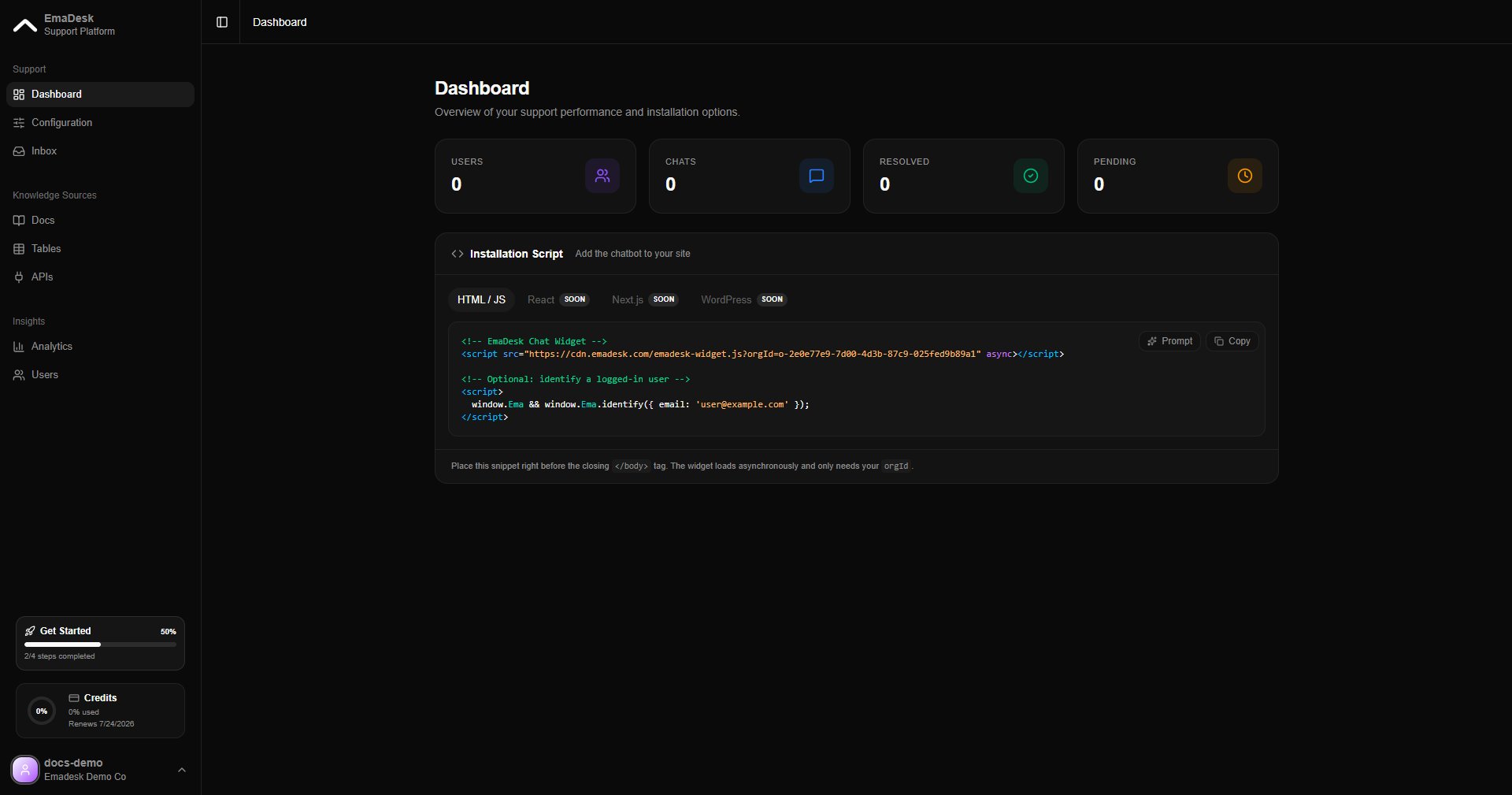
Copy the widget snippet from the [Dashboard](/dashboard) and add it to your website.
Watch conversations in the [Inbox](/inbox), measure results in [Analytics](/analytics), and invite your [team](/team-and-users).
In a hurry? The [Quickstart](/quickstart) takes you from sign-up to a live widget in a few minutes.
## What you can do
Upload documents or crawl your site and the agent answers from your real content, with sources.
Give the agent structured tables it can read and write during a chat, like orders or bookings.
Connect your own APIs so the agent can fetch live data or trigger workflows mid-conversation.
When a chat needs a person, the agent transfers it to your support team automatically.
## How it fits together
Sign up, name your organization, and the agent is created for you. See [Sign up and onboarding](/onboarding).
Add [knowledge](/knowledge-base), [tables](/tables), and [API tools](/integrations), then shape its instructions in [Configuration](/configuration).
Copy the widget snippet from the [Dashboard](/dashboard) and add it to your website.
Watch conversations in the [Inbox](/inbox), measure results in [Analytics](/analytics), and invite your [team](/team-and-users).
In a hurry? The [Quickstart](/quickstart) takes you from sign-up to a live widget in a few minutes.